Find documents, prepare contracts and check your legal projects from Claude, Codex or Cursor using your Lexgo account.
What you can do
Prepare a contract
Ask for a draft using the templates available to your company. Your agent will ask for the details needed to complete the contract and download it as a PDF.
I want to sign an NDA with Rocketfuel SpA. Can you prepare a draft?
Send a PDF for signature
If you already have the document, you can send it for signature without filling out a contract form. You'll need the PDF and the signer's name and email. They receive an invitation to sign in Lexgo.
Send this NDA to [name and email] for signature on behalf of Rocketfuel SpA.
You can also check its progress:
Has the NDA with Rocketfuel SpA been signed yet?
Work with your Counsel projects
Check a project's requests and attach the documents your legal team needs.
Find the Rocketfuel SpA project and attach this PDF as supporting material.
Your agent uses the permissions you already have in Lexgo. If you work with several companies, ask which ones you can access and choose one.
How to connect Lexgo
Add this address in your app:
https://app.lexgo.cl/mcp
Sign in with your Lexgo account to authorize the connection. You don't need an API key; leave token and custom header fields empty.
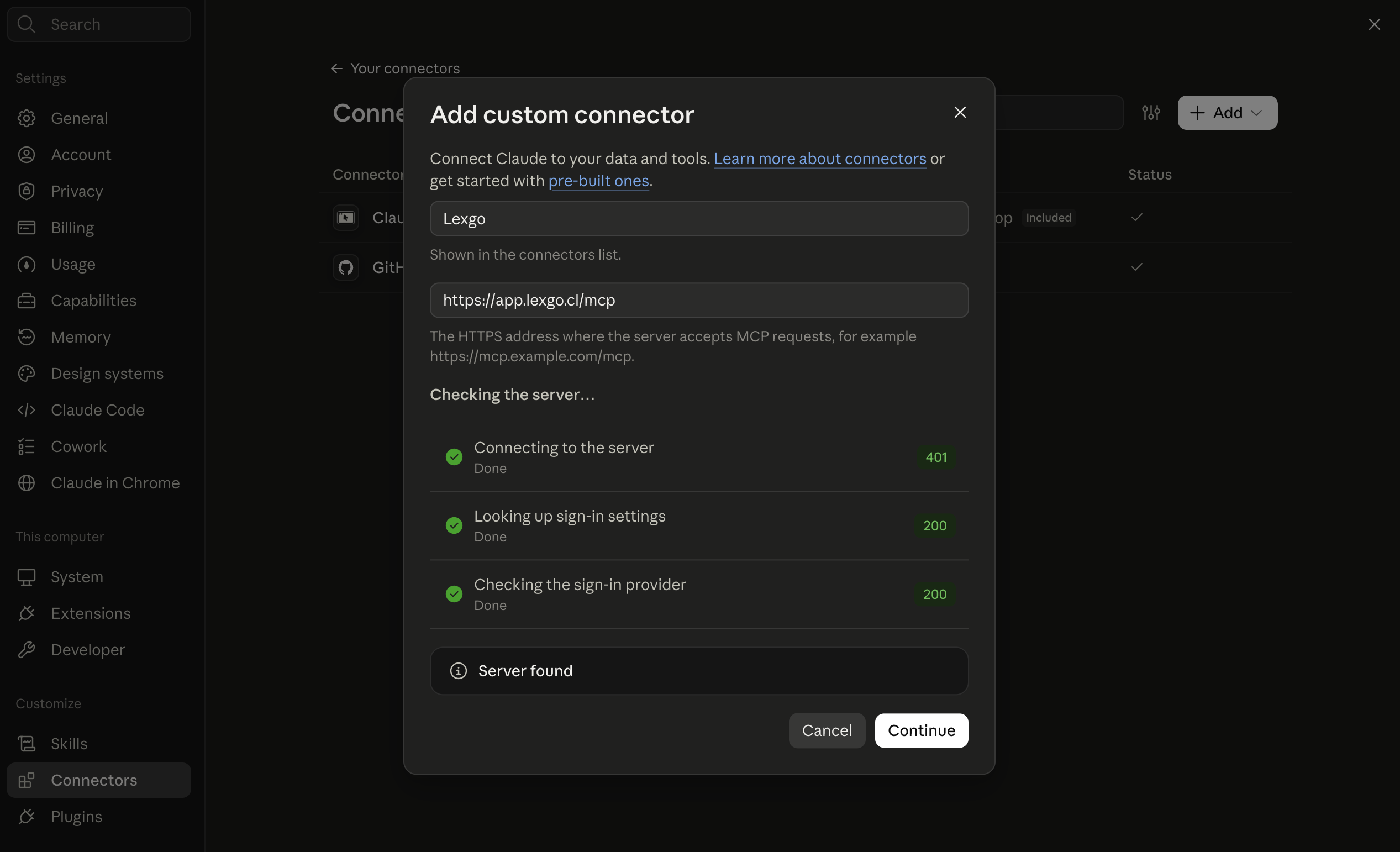
Claude Desktop and claude.ai
- Open Settings → Connectors (some versions show Customize → Connectors).
- Choose Add → Add custom connector.
- Enter Lexgo and
https://app.lexgo.cl/mcp. - Continue through the server check, then connect/sign in to Lexgo.
- Review the account, requested access and companies before authorizing. Return to Claude and ask it to find a document or prepare a draft.
On Team or Enterprise, your organization may require an owner to add the connector before members connect individually. See Claude's connector guide for current plan and menu details.
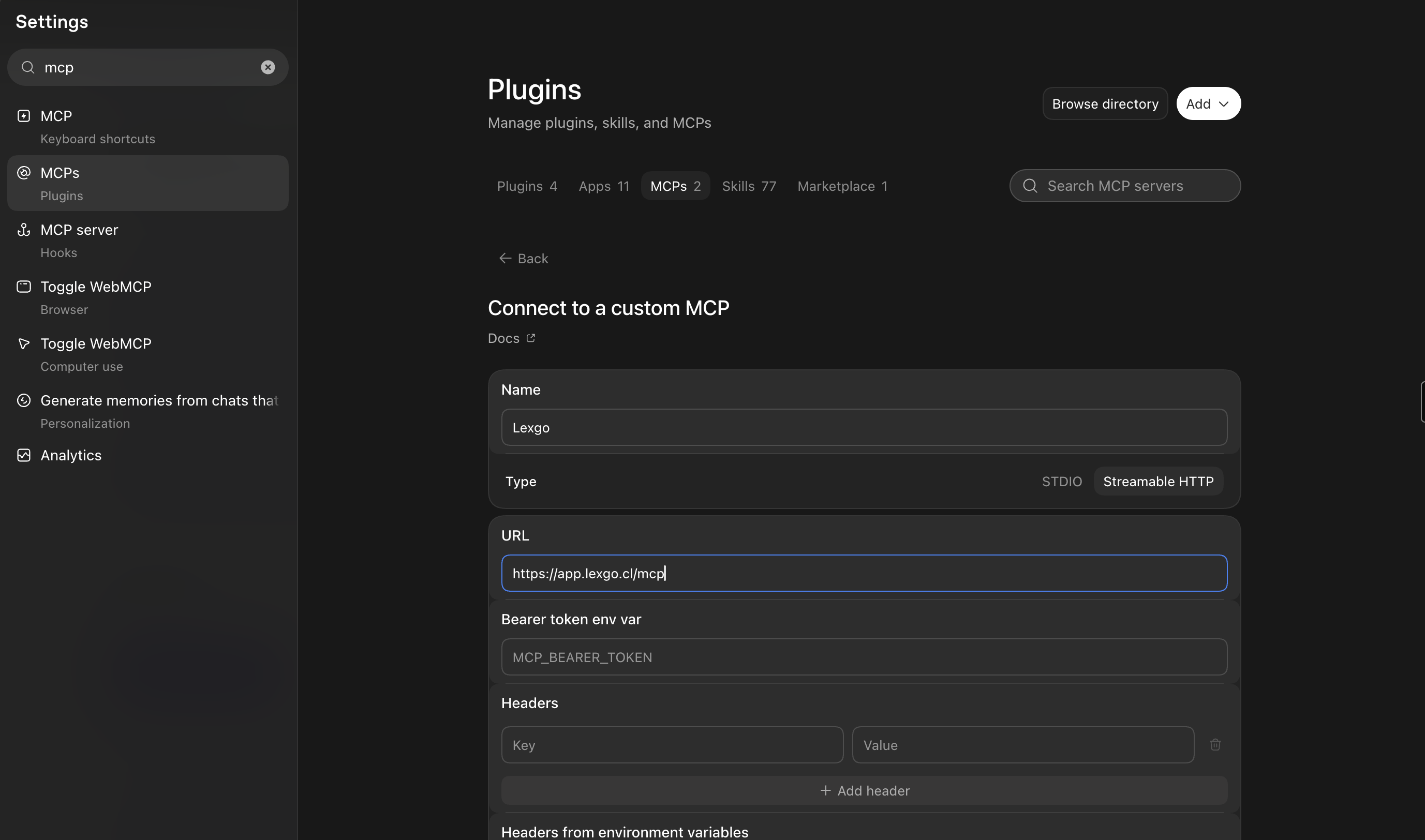
Codex desktop
- Open Settings → Plugins → MCPs → Add → Connect to a custom MCP. Menu labels can vary by version; search Settings for MCP.
- Enter Lexgo, select Streamable HTTP and paste
https://app.lexgo.cl/mcp. - Leave Bearer token env var and Headers empty. Save the connection and choose its authentication/sign-in action.
- Sign in to Lexgo, review the account and access, authorize, then return to Codex. Start a fresh chat if the new tools are not visible.
Claude Code
claude mcp add --transport http lexgo https://app.lexgo.cl/mcp
Run /mcp in Claude Code, choose lexgo and sign in.
Codex CLI and IDE extension
codex mcp add lexgo --url https://app.lexgo.cl/mcp
codex mcp login lexgo
Or add the following to ~/.codex/config.toml, then run the login command:
[mcp_servers.lexgo]
url = "https://app.lexgo.cl/mcp"
Desktop, CLI and IDE can share this configuration. See Codex MCP documentation for current settings.
Cursor
Or add the server to ~/.cursor/mcp.json:
{
  "mcpServers": {
    "lexgo": {
      "url": "https://app.lexgo.cl/mcp"
    }
  }
}
Open Cursor's MCP settings and authenticate Lexgo. You can also connect other apps that support remote HTTP MCP and OAuth.
Having trouble?
- Wrong account or missing companies: disconnect Lexgo and reconnect with the account you want to use.
- Can't find a template: check which company is selected and whether the template is available for that company in Lexgo.
- Your agent can't read the PDF: try uploading it through the Lexgo website. Some apps don't share chat attachments with their MCP connections.
- Tools aren't showing up: refresh the connection or start a new chat.
For help, email contacto@lexgo.cl with the app you're using and the error you see.
Connect Claude or Codex